How to update a theme without losing changes
Every purchase includes lifetime updates: fixes, compatibility with new WordPress versions and new features. Your settings and content are stored in the database, so an update doesn’t touch them. Custom code is safe only in a child theme — changes made directly in the theme files are lost.
Before you update
- Make a backup. Use your host’s backups or a plugin like UpdraftPlus. Read more about WordPress backups.
- Read the changelog — it may contain notes for this version.
- Test on a staging site first if the site is busy or heavily customized.
Where to get the new version
- Gumroad — we email you when an update is out. Download the latest version from your Gumroad Library.
- ThemeForest — download it from ThemeForest → Downloads, or use the Envato Market plugin to update from the dashboard.
Option 1: upload over the old version
- Go to Appearance → Themes → Add New → Upload Theme.
- Select the new theme zip and click Install Now.
- WordPress asks whether to replace the current version — choose Replace active with uploaded.
Option 2: FTP
- Unzip the new theme archive.
- Connect to the server via FTP and open
wp-content/themes/. - Delete the old theme folder and upload the new one.
Option 3: automatic updates
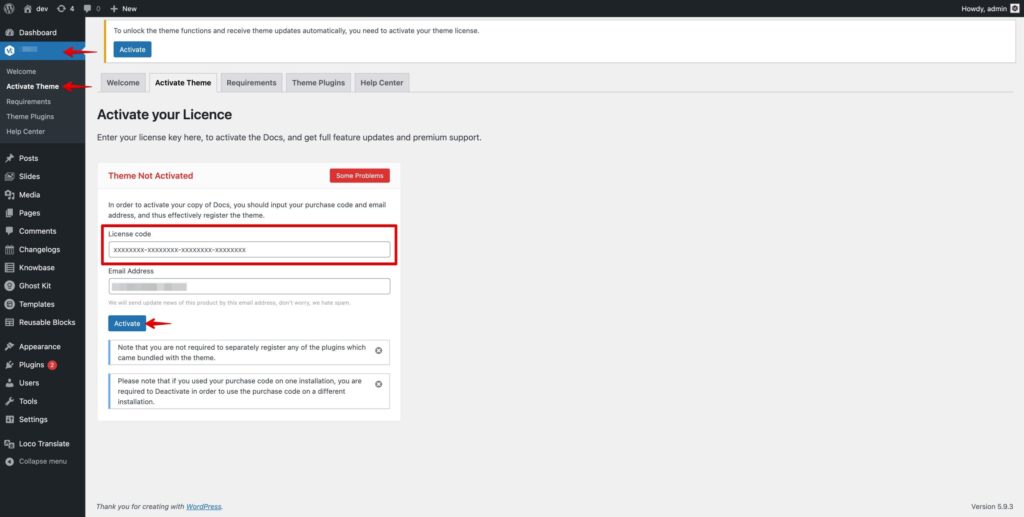
Activate the theme in Theme Panel → Activate Theme with your license key — updates will then appear in Dashboard → Updates.
Something looks wrong after the update?
- Clear all caches: caching plugin, server cache and the browser — see Changes don’t show up.
- Update the bundled plugins in Appearance → Install Plugins.
- Elementor sites: go to Elementor → Tools → General and click Regenerate Files & Data.
Still broken? Restore the backup, take a screenshot of the issue and open a support ticket.
Was this article helpful?
Thanks for your feedback!