Updating bundled plugins
A notice about a plugin update usually means a new version of a bundled plugin is available. Unless you bought that plugin separately, we ship its latest version after testing it with the theme.
Update
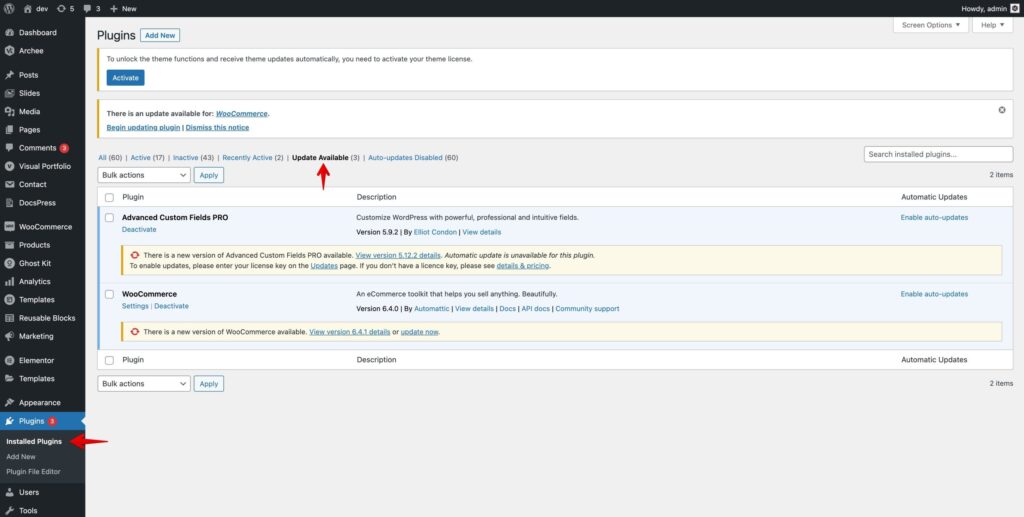
- Go to Plugins → Installed Plugins and click Update Available.
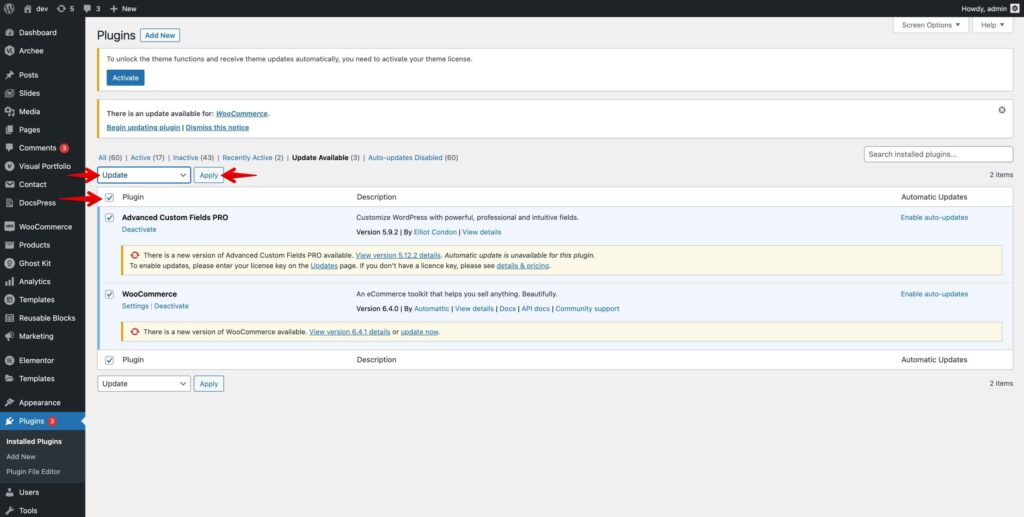
- Select the plugins to update.
- Choose the Update bulk action and click Apply.
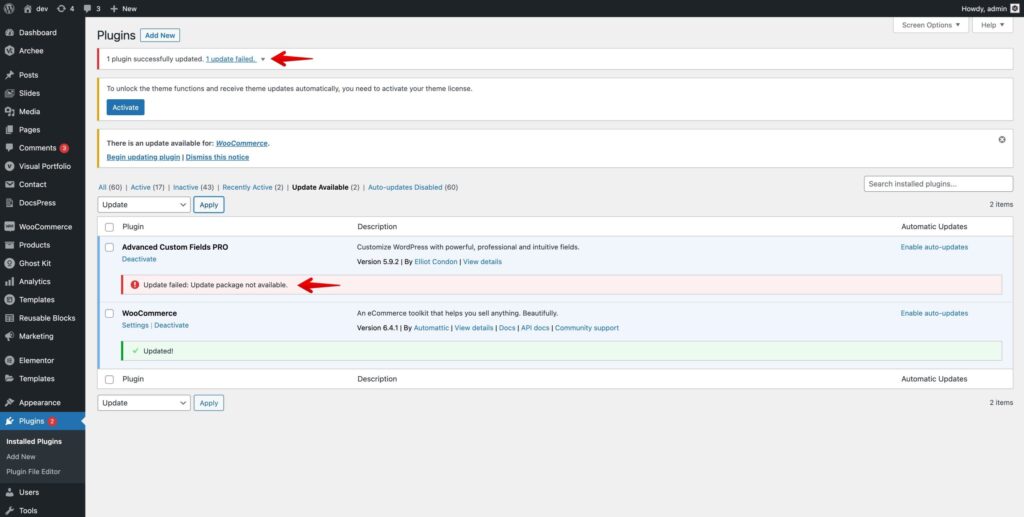
If the update fails
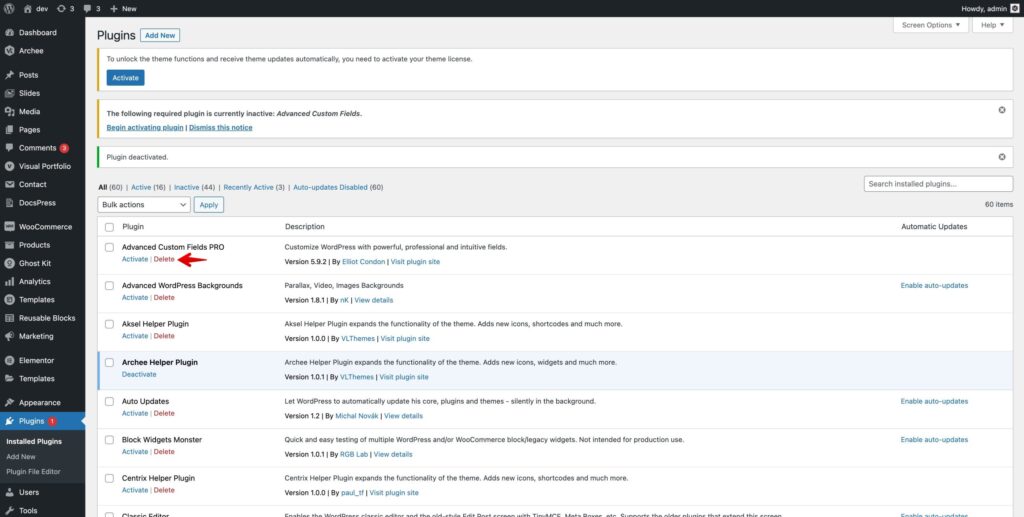
- Deactivate and delete the plugin in Plugins → Installed Plugins.
- Go to Appearance → Install Plugins.
- Install the plugin again and activate it.
Turn off auto-updates for the theme helper plugin
Sometimes WordPress tries to auto-update a plugin that isn’t in the WordPress.org directory — like our theme helper plugin — overwrites it with the wrong files, and the site shows a critical error.
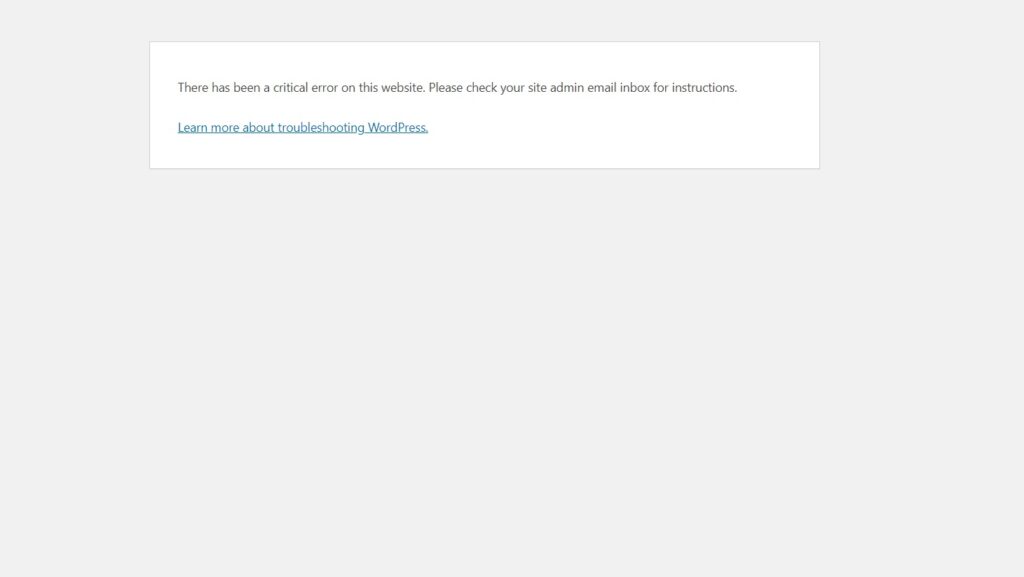
- Delete the helper plugin (from the dashboard, or remove its folder in
wp-content/plugins/via FTP). - Install it again from Appearance → Install Plugins.
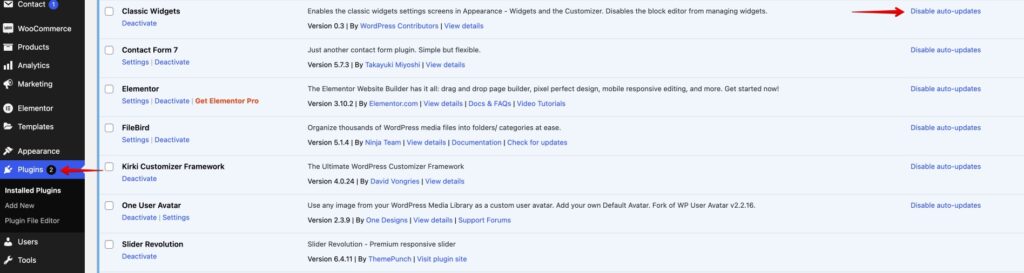
- In Plugins, click Disable auto-updates next to it.
Was this article helpful?
Thanks for your feedback!