Adding custom CSS and JavaScript
Most design tweaks — changing a color, adjusting a font size, or fine-tuning spacing — require just a few lines of CSS. The good news is that you can make these changes without editing our theme files.
Find the right selector
Your browser’s developer tools let you inspect elements, see which CSS rules affect them, and preview changes in real time.
To get started, right-click the element you want to customize and choose Inspect in Chrome, Firefox, or Edge. In Safari, first enable Settings → Advanced → Show Develop menu.
- Right-click the element and select Inspect.
- The HTML appears in one panel, while the CSS rules for the selected element appear in another.
- Change CSS values to preview your adjustments — the page updates as you type.
- To add a new rule, click + in the styles panel. If your selector is too general, make it more specific by including parent classes (using
.before a class name) or IDs (using#before an ID).
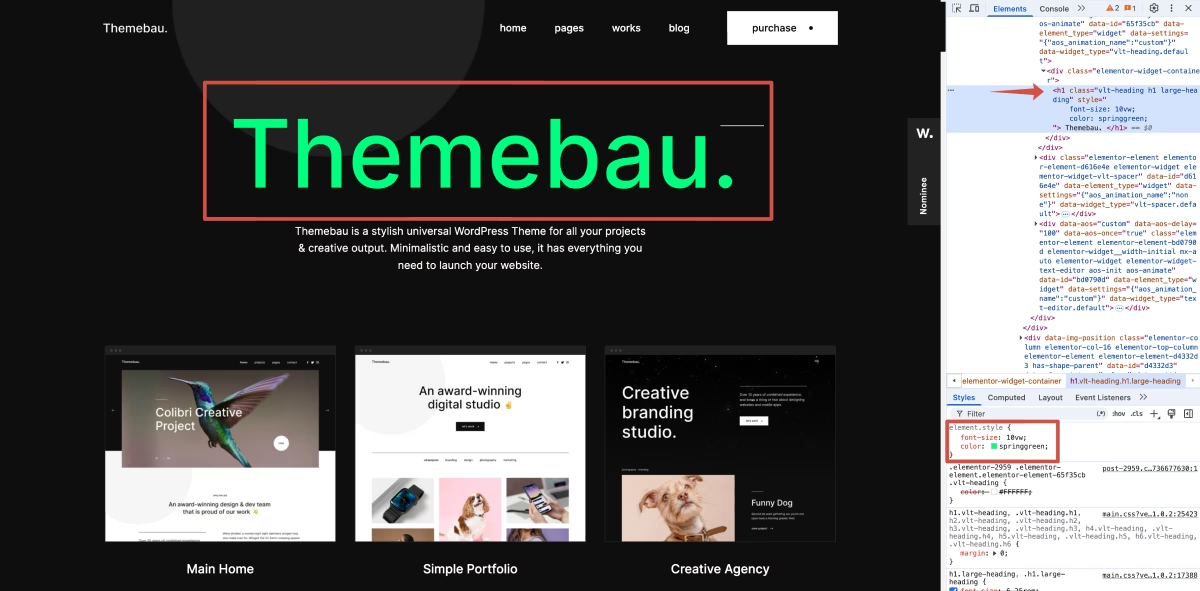
Keep in mind that changes made in developer tools are only temporary. Once you’re happy with the result, save your CSS using the steps below.
Save the CSS
In WordPress, go to Appearance → Customize → Additional CSS, paste your code, and click Publish.
Your custom styles will then be saved and applied to your website. If your theme uses a different customization interface, look for its custom CSS option or use a suitable plugin.
Add custom JavaScript
Need to add interactive features or other custom behavior? You can use a plugin such as Header and Footer Scripts.
- Install and activate the plugin.
- Go to Settings → Header and Footer Scripts.
- Add your JavaScript to the header or footer field, following the plugin’s instructions. Header scripts are typically placed inside the
<head>element, while footer scripts are placed before the closing</body>tag. - Click Save settings.
For larger scripts or more advanced customizations, you can add a .js file to your child theme and enqueue it using WordPress. This keeps your custom code separate from the parent theme, so theme updates are less likely to overwrite your changes.
Always back up your website before making significant changes, and test custom CSS and JavaScript on a staging site whenever possible.